
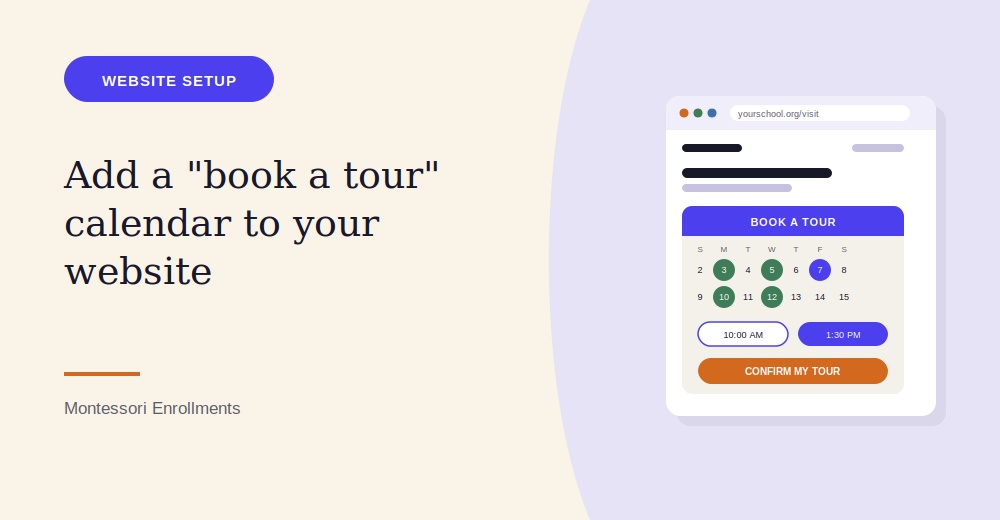
A visible, easy-to-use “Book a Tour” calendar on your website turns a passive visitor into an active prospective family in a single click. Here’s a detailed walkthrough of how to actually add one to your Montessori school’s site.
Step 1: Decide Where the Calendar Should Live
The most effective placement is somewhere visible and easy to find — a dedicated “Schedule a Tour” or “Visit Us” page linked prominently in your website’s main navigation, and often repeated as a button on your homepage and admissions pages. Montessori Enrollments lets you embed the calendar wherever makes sense for your site, so it’s never more than a click or two away from any page a parent might be reading.
Step 2: Set Up Your Real Tour Availability
Before the calendar goes live, you’ll need to define which days and times are actually open for tours inside Montessori Enrollments, including how many families can book each slot and whether different times apply to different campuses or programs. This becomes the live data source the calendar pulls from, so what parents see always reflects genuine availability.
Step 3: Embed the Calendar Widget
Once your availability is set, Montessori Enrollments provides a simple embed you can add to your website — no custom development required. The widget displays open time slots, and a parent can select one and confirm their booking directly on the page.
Step 4: Customize the Booking Experience
A generic scheduling widget can feel disconnected from your school’s brand. Montessori Enrollments lets you customize colors, wording, and the information collected from parents during booking (like their child’s age or program of interest), so the experience feels like a natural part of your website rather than a bolted-on tool.
Step 5: Connect the Calendar to Confirmations and Reminders
Once a booking is made, the calendar should trigger the right follow-up automatically — a confirmation immediately, and a reminder as the tour date approaches. Montessori Enrollments handles both without requiring any manual steps from your staff.
Step 6: Make Sure the Booking Updates Your Pipeline
A tour booked through the calendar shouldn’t sit in isolation — it should immediately be reflected in your broader admissions tracking. Because Montessori Enrollments connects the booking calendar directly to your enrollment pipeline, a family’s status updates automatically the moment they book, without any manual data entry.
Putting It All Together
Adding a “Book a Tour” calendar to your website comes down to defining real availability, embedding an easy-to-use widget in a visible spot, and making sure the booking connects automatically to the rest of your admissions process.
See how Montessori Enrollments can add a live tour booking calendar to your school’s website.
Frequently Asked Questions
Do I need a developer to add a tour booking calendar to my website?
No. Montessori Enrollments provides a simple embed code that adds the calendar to your site without custom development.
Where should the booking calendar be placed on my website?
A dedicated “Schedule a Tour” page, linked prominently in your navigation and repeated as a button on key pages, tends to work best.
Can the calendar be customized to match our school’s branding?
Yes. Montessori Enrollments lets you adjust colors, wording, and the information collected during booking.
Does the calendar show real, up-to-date availability?
Yes. It pulls directly from your live tour schedule inside Montessori Enrollments, so it’s always accurate.
Can the calendar collect information beyond just a name and contact info?
Yes. You can configure it to ask for details like a child’s age or program of interest during the booking process.
Will parents get an automatic confirmation after booking?
Yes. Montessori Enrollments sends a confirmation immediately, along with a reminder as the tour date approaches.
Does a booking through the calendar update our enrollment pipeline?
Yes. The family’s status updates automatically the moment they book, without requiring manual entry.
Can the calendar support multiple campuses or programs?
Yes. Montessori Enrollments can display separate availability depending on the campus or program a family selects.
Is it possible to limit how many families can book the same time slot?
Yes. You can configure capacity per slot when setting up your availability.
How do I get started adding a booking calendar to my website?
Set up your tour availability inside Montessori Enrollments, then embed the provided widget on your website.
